Troubleshoot
Running into an issue? Don’t worry - we’ve got you covered. Here are quick solutions to some of the most common issues you may encounter while using Soan Papdi.
Can’t find a solution here? We’re happy to help. Call us at +91 9026278822 or email us at [email protected].
“iCE Studio damaged” Error (macOS)
If you are on a Mac and see an error saying "icestudio.app" is damaged and can't be opened:
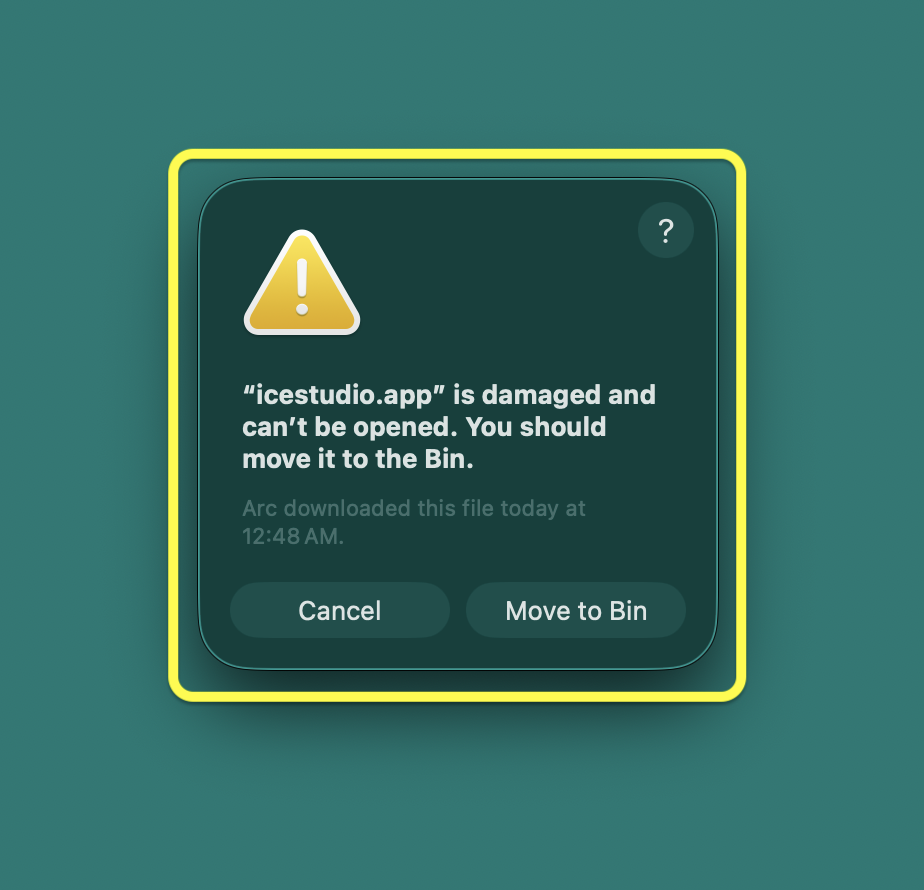
The Fix:
Don’t panic—your app isn’t actually broken! macOS is just being overly protective about apps downloaded from the internet. To bypass this, open your Terminal and run this command:
xattr -c /System/Volumes/Data/Applications/icestudio.appNote: If you dragged iCE Studio straight to your main Applications folder instead, use xattr -c /Applications/icestudio.app.
Once you run that, iCE Studio will open perfectly!

Board Failing to Upload
If your upload fails or you see a red error box in iCE Studio when trying to flash your bitstream, your board probably isn’t in Programming Mode.
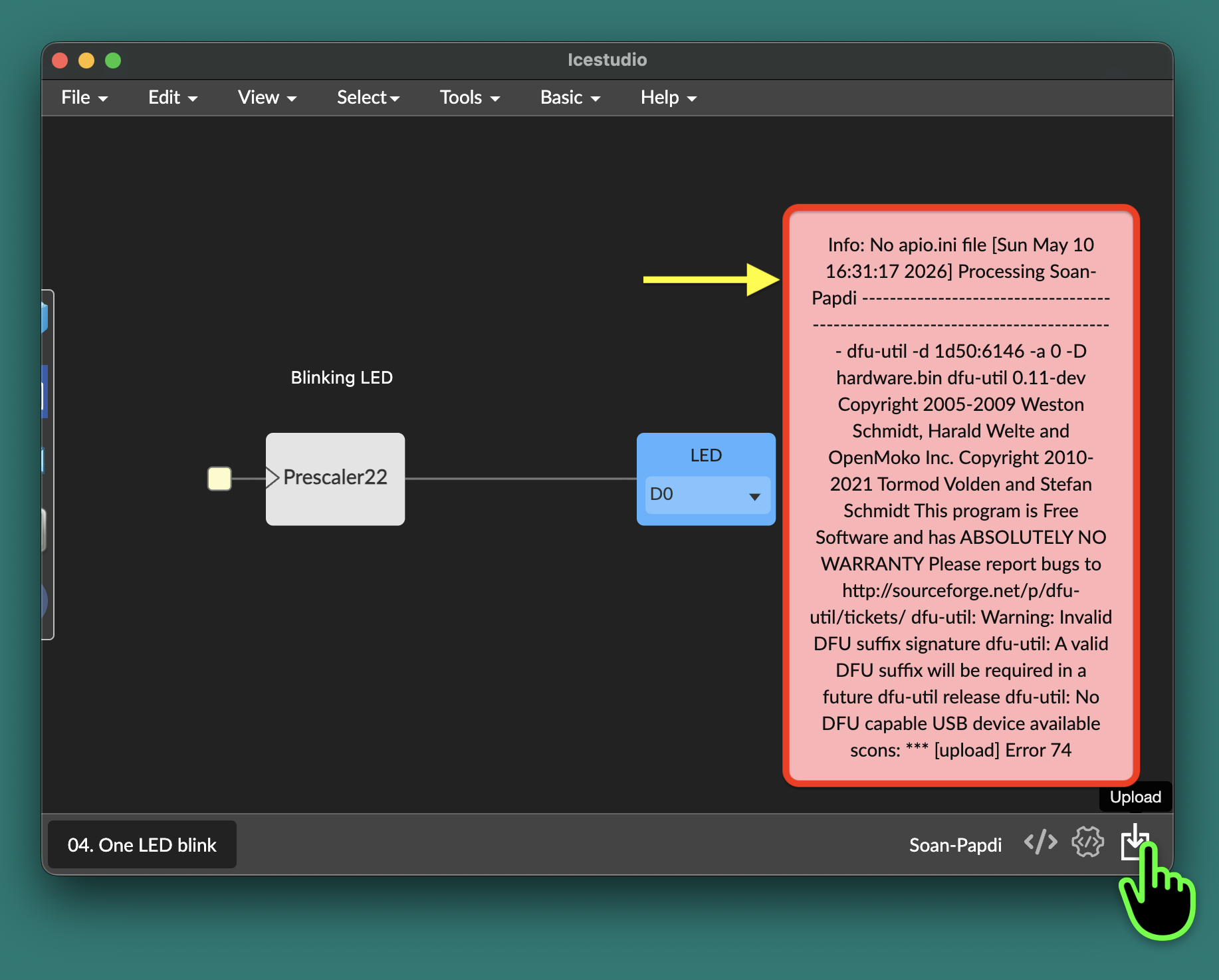
The Fix:
Before uploading any new design to the FPGA, you must explicitly tell the Soan Papdi to listen for a new bitstream by putting it into Programming Mode.
How to Enter Programming Mode

Press and hold the PROG button
Keep it held down.
Press the RESET button
While still holding PROG, press and release the RESET button. The S0 (white) and D7 (yellow) LEDs will turn on.
Release the PROG button
You can now let go of the PROG button.
Wait for the blinking LEDs
The S0, S1, and S2 white LEDs will start blinking in a sequence. This means the board is successfully in programming mode and ready to receive your design!
Soan Papdi in programming mode — watch for the blinking white LEDs on S0, S1, and S2.
Once your board looks like the video above, hit upload in iCE Studio (or run apio upload). When the upload finishes, simply press the RESET button on the board to run your new program!